
Login
Remove Object from Image
Remove unwanted objects,people,or watermarks from your photos. Paint over unwanted elements,
and let the Magic Eraser work its magic.
and let the Magic Eraser work its magic.
 Upload Image
Choose a image or drop it here
JPEG,JPG,PNG
By uploading an image or URL you agree to our Terms of Use and Privacy Policy
Drop your image here
(1 file at a time)
Remove Easily Remove Unwanted Objects
Able to remove background people in photos, remove other products in e-commerce images, and more.
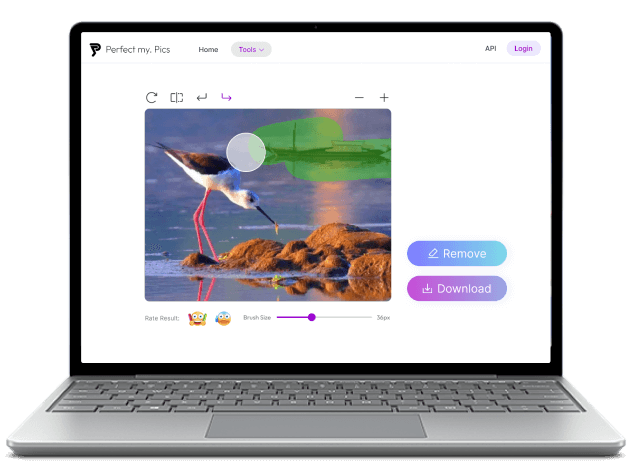
How to remove object from image?
Step 1: Launch Remove Object from Image and upload the image.
Launch Remove Object from Image using a mobile or desktop browser, then click the upload button to browse and add the image, or drag and drop the image into the page.
Step 2: Paint the object and remove
Use the brush tool to cover the unwanted object, then click Remove button to remove it, this will take a few seconds.
Step 3: Download images
Click Download button to download images that have removed unwanted object.
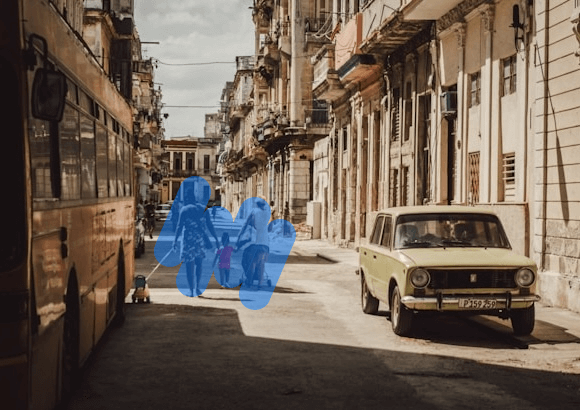
Remove People from Photos
Snapping a photo at a bustling tourist attraction without strangers in the background can be a challenge. However, with our AI-powered object remover, you can easily brush away any photobombers. This tool allows you to effortlessly remove unwanted people, giving you that perfect, clear shot of landmarks or landscapes.
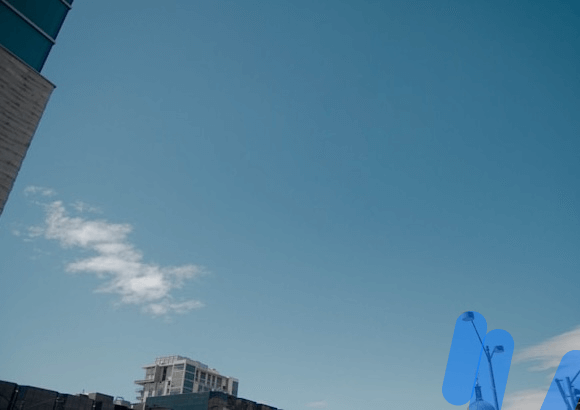
Eliminate Distractions in Your Photos
An otherwise great photo can often be marred by unsightly distractions like poles, wires, or even photobombing animals. Use our object removal tool to clean up these distractions. With a simple selection and a click, our AI technology refines your image, making those annoying intrusions disappear as if they were never there.
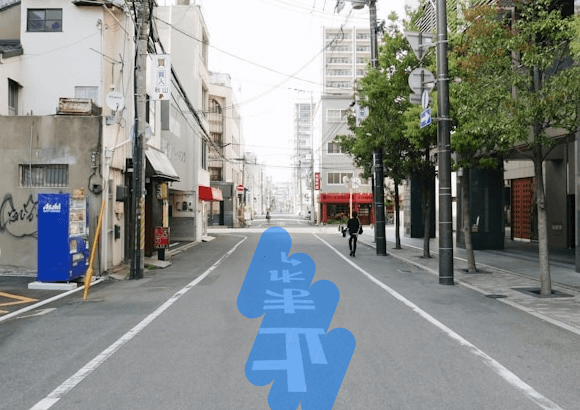
Clear Unwanted Text and Labels
Whether it’s a distracting store sign, unwanted street names, or any text overlay that detracts from the aesthetic of your photo, our tool can remove it seamlessly. Just select the text with our intuitive interface, and watch our AI work its magic, leaving you with a pristine and unblemished image.

Remove Watermarks and Logos
Unwanted watermarks or logos can detract from the visual appeal of a photo, especially if you intend to use it for presentations or as artwork. With our object remover, you can easily erase these imprints without affecting the underlying image. A few simple taps are all it takes to restore your photo to its original glory.
People love PerfectMyPics

Isabella
Outstanding Object Removal Quality
The quality of the object removal is simply outstanding! Every time I use this feature, I'm amazed at how seamlessly it erases unwanted elements from my photos, leaving no trace behind. The end results are so clean and natural-looking; it's like the objects were never there!
5.0

Elijah
User-Friendly Object Removal
I'm blown away by how user-friendly the Remove Object from Image tool is! With just a few clicks, I can clean up any photo effortlessly. It's perfect for quickly editing images without needing complex software or technical skills. Truly a game-changer for everyday photo editing!
5.0

Charlotte
High-Resolution Free Object Removal
It’s incredible that such a powerful tool is available for free and doesn’t compromise on quality. The high-resolution output after removing objects from my photos is impressive. It’s rare to find a free tool that maintains such clarity and detail in the editing process.
5.0
You ask a question, we answer it
How to remove people from a photo?
To remove people from your photos using PerfectMyPics, simply upload the image to our platform, select the 'Remove Object from Image' tool, and highlight the people you want to remove. Our AI will process your request and remove the selected figures, leaving a clean and uninterrupted background.
How to remove an unwanted object from a photo?
Upload your photo to PerfectMyPics, use the 'Remove Object from Image' feature to select any unwanted object, such as a stray bag or a trash can, and our AI will seamlessly erase it from your image, adjusting the background for a natural look.
How to remove text from an image?
With PerfectMyPics, removing text is as simple as selecting the text with our removal tool. The AI will detect and erase the text, smoothing over the area to make sure the underlying image looks intact and unedited.
How to remove watermark from an image?
To remove a watermark, upload the image, use the 'Remove Object from Image' feature to select the watermark, and let our AI take care of the rest. It will remove the watermark without degrading the quality of the image.
Do I need Photoshop to remove unwanted objects from an image?
No, you don’t need Photoshop. PerfectMyPics offers a completely free and easy-to-use alternative that allows you to remove objects from photos directly in your browser without any complex software.
How to remove unwanted objects from photos easily?
PerfectMyPics makes it easy to remove any unwanted objects. Just upload your photo, select the object you wish to remove with our intuitive tool, and our AI will handle the rest, ensuring a clean and pleasing result.
Which is the best tool for removing objects from an image?
PerfectMyPics removes objects from images with AI, free and directly in your browser: brush over the object, and the AI erases it and rebuilds the background for a natural look — no Photoshop or downloads needed.
Is there a free app to remove objects from photos?
Yes, PerfectMyPics is a free app that lets you remove objects from photos effortlessly. It's web-based, so you can access it from any device with an internet connection, without the need for downloads or subscriptions.
Is it safe to upload my photos and videos to PerfectMyPics?
Yes. Uploaded files are used only to process your request. PerfectMyPics keeps your content private, retains it only as long as needed to provide the service, and then deletes or anonymizes it, as described in our Privacy Policy.